Checkbox Variables
Display checkboxes in your generated PDFs based on your Airtable data. Supports automatic boolean checkboxes and conditional checkboxes for Single/Multiple Select fields.
Overview
TypeFlow supports two types of checkboxes:
| Type | Airtable Field | How It Works |
|---|---|---|
| Boolean | Checkbox field | Automatic - just use {{field_name}} |
| Conditional | Single Select / Multiple Select | Use {{checkbox:name|value}} syntax |
Important: These are NOT fillable/interactive PDFs. The checkboxes reflect your Airtable data at generation time and cannot be modified in the PDF.
Boolean Checkboxes (Automatic)
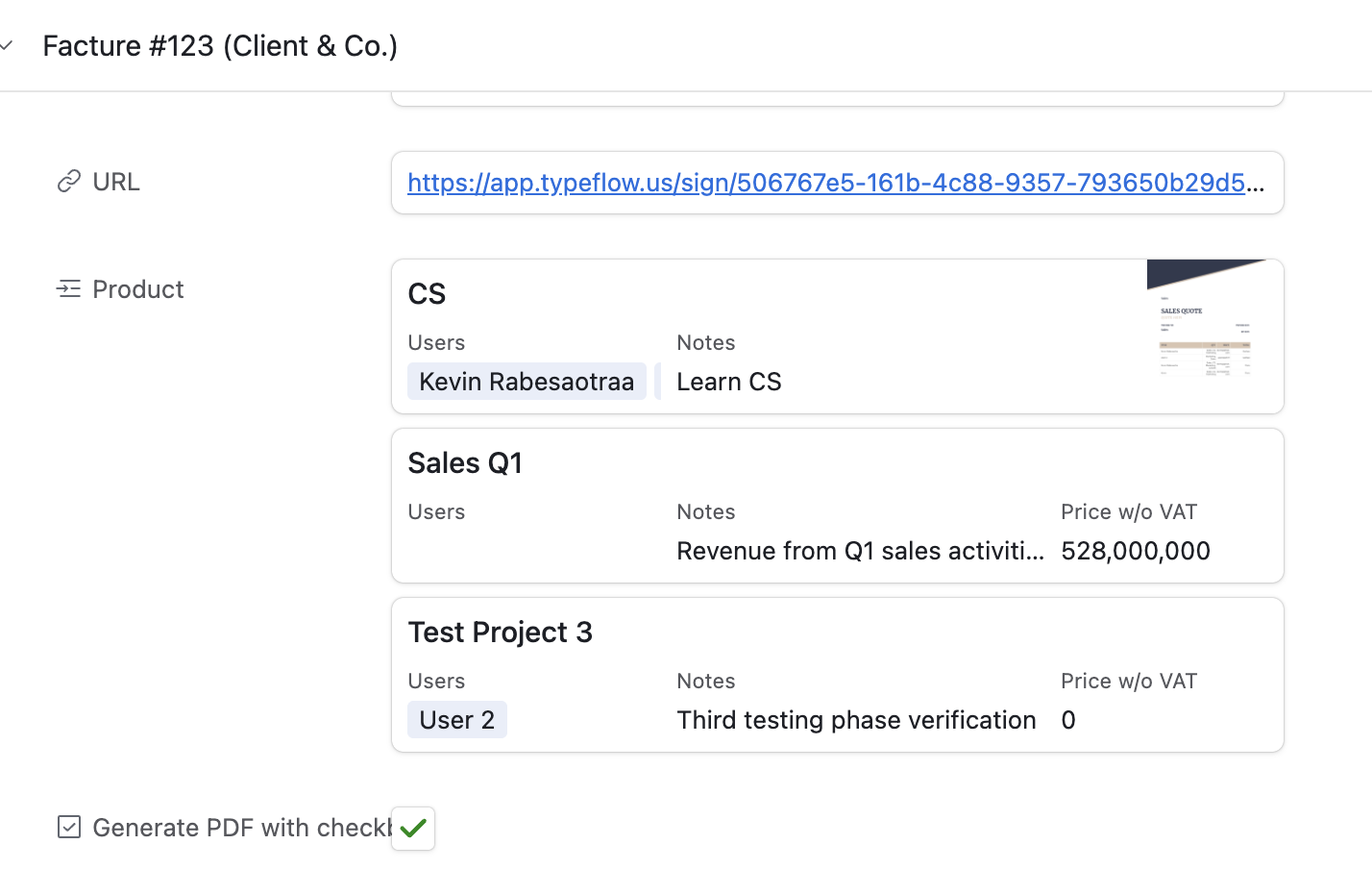
If you have a Checkbox field in Airtable (true/false), it automatically renders as a visual checkbox. No special syntax needed.
How It Works
| Airtable Value | Output |
|---|---|
| Checked (true) | ☑ |
| Unchecked (false) | ☐ |
Usage
Just use the standard variable syntax:
{{your_checkbox_field}}
Example
Template:
Document Verified: {{is_verified}}
Contract Signed: {{is_signed}}
Payment Received: {{payment_received}}
Output (when is_verified=true, is_signed=true, payment_received=false):
Document Verified: ☑
Contract Signed: ☑
Payment Received: ☐
No configuration needed - boolean checkboxes work automatically with any Checkbox field from Airtable.
Note: Boolean checkboxes work for regular variables. For checkboxes inside {{loop_0}} table loops, the value may display as true/false instead of ☑/☐.
Conditional Checkboxes
For Single Select or Multiple Select fields where you want to display multiple checkbox options with one (or more) checked based on the selected value.
The Syntax
{{checkbox:FIELD_NAME|EXPECTED_VALUE}}
| Part | Description | Example |
|---|---|---|
checkbox: | Required prefix | checkbox: |
FIELD_NAME | A name you choose for this checkbox group | status, payment, verified |
| | Separator between name and value | | |
EXPECTED_VALUE | The value that makes this checkbox checked | Yes, Credit Card, Approved |
How it works:
| What you write | Result |
|---|---|
{{checkbox:status|Yes}} | Shows ☑ when field value is "Yes", otherwise ☐ |
{{checkbox:status|No}} | Shows ☑ when field value is "No", otherwise ☐ |
Step-by-Step Tutorial
Step 1: Add checkbox variables to your template
In your Google Doc or HTML template, add the checkbox syntax where you want the checkboxes:
Verification Complete:
{{checkbox:verified|Yes}} Yes
{{checkbox:verified|No}} No
Step 2: Open the Flow Builder
After selecting your template, you'll see the variables extracted in the Mapping tab.
You'll see a single variable: {{checkbox:verified}}
Step 3: Map to your Airtable field
Map {{checkbox:verified}} to your Airtable Single Select field (e.g., "Verification Status").

Step 4: Generate your document
When you generate a document:
| If field value is... | Output |
|---|---|
| "Yes" | ☑ Yes ☐ No |
| "No" | ☐ Yes ☑ No |
| Empty | ☐ Yes ☐ No |
Examples
Yes/No Checklist
Perfect for inspection forms, verification checklists, or approval documents.
Template:
Pre-Installation Checklist                    (Yes)                    (No)
─────────────────────────────────────────────────────────────────────────────
Adequate space for appliance                 {{checkbox:space|Yes}}   {{checkbox:space|No}}
Clear delivery access                        {{checkbox:access|Yes}}  {{checkbox:access|No}}
Floor level and stable                       {{checkbox:floor|Yes}}   {{checkbox:floor|No}}
Electrical outlet available                  {{checkbox:outlet|Yes}}  {{checkbox:outlet|No}}
Water connection present                     {{checkbox:water|Yes}}   {{checkbox:water|No}}
Mapping:
| Variable | Airtable Field |
|---|---|
{{checkbox:space}} | "Space OK" (Single Select: Yes/No) |
{{checkbox:access}} | "Access OK" (Single Select: Yes/No) |
{{checkbox:floor}} | "Floor OK" (Single Select: Yes/No) |
{{checkbox:outlet}} | "Outlet OK" (Single Select: Yes/No) |
{{checkbox:water}} | "Water OK" (Single Select: Yes/No) |
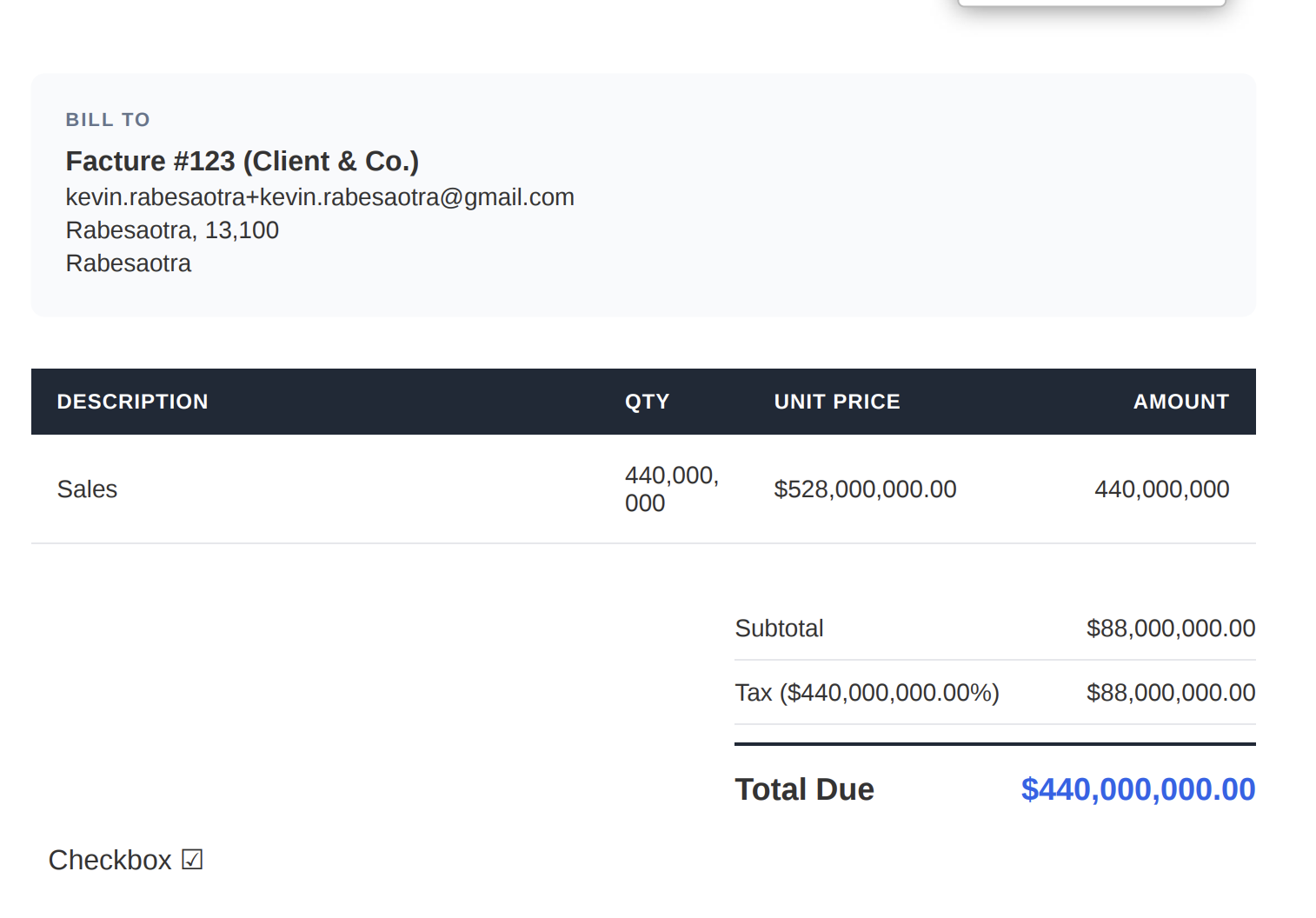
Output (example):
Pre-Installation Checklist                    (Yes)  (No)
───────────────────────────────────────────────────────────
Adequate space for appliance                   ☑      ☐
Clear delivery access                          ☐      ☑
Floor level and stable                         ☑      ☐
Electrical outlet available                    ☑      ☐
Water connection present                       ☐      ☑
Multiple Choice Options
For fields with more than two options.
Template:
Payment Method:

{{checkbox:payment|Cash}} Cash
{{checkbox:payment|Credit Card}} Credit Card
{{checkbox:payment|Bank Transfer}} Bank Transfer
{{checkbox:payment|Check}} Check
Mapping:
| Variable | Airtable Field |
|---|---|
{{checkbox:payment}} | "Payment Method" (Single Select) |
Output (when field = "Credit Card"):
Payment Method:

☐ Cash
☑ Credit Card
☐ Bank Transfer
☐ Check
Multiple Select (Multiple Checked)
When your Airtable field is a Multiple Select, multiple checkboxes can be checked.
Template:
Services Requested:

{{checkbox:services|Consulting}} Consulting
{{checkbox:services|Installation}} Installation
{{checkbox:services|Maintenance}} Maintenance
{{checkbox:services|Training}} Training
Mapping:
| Variable | Airtable Field |
|---|---|
{{checkbox:services}} | "Services" (Multiple Select) |
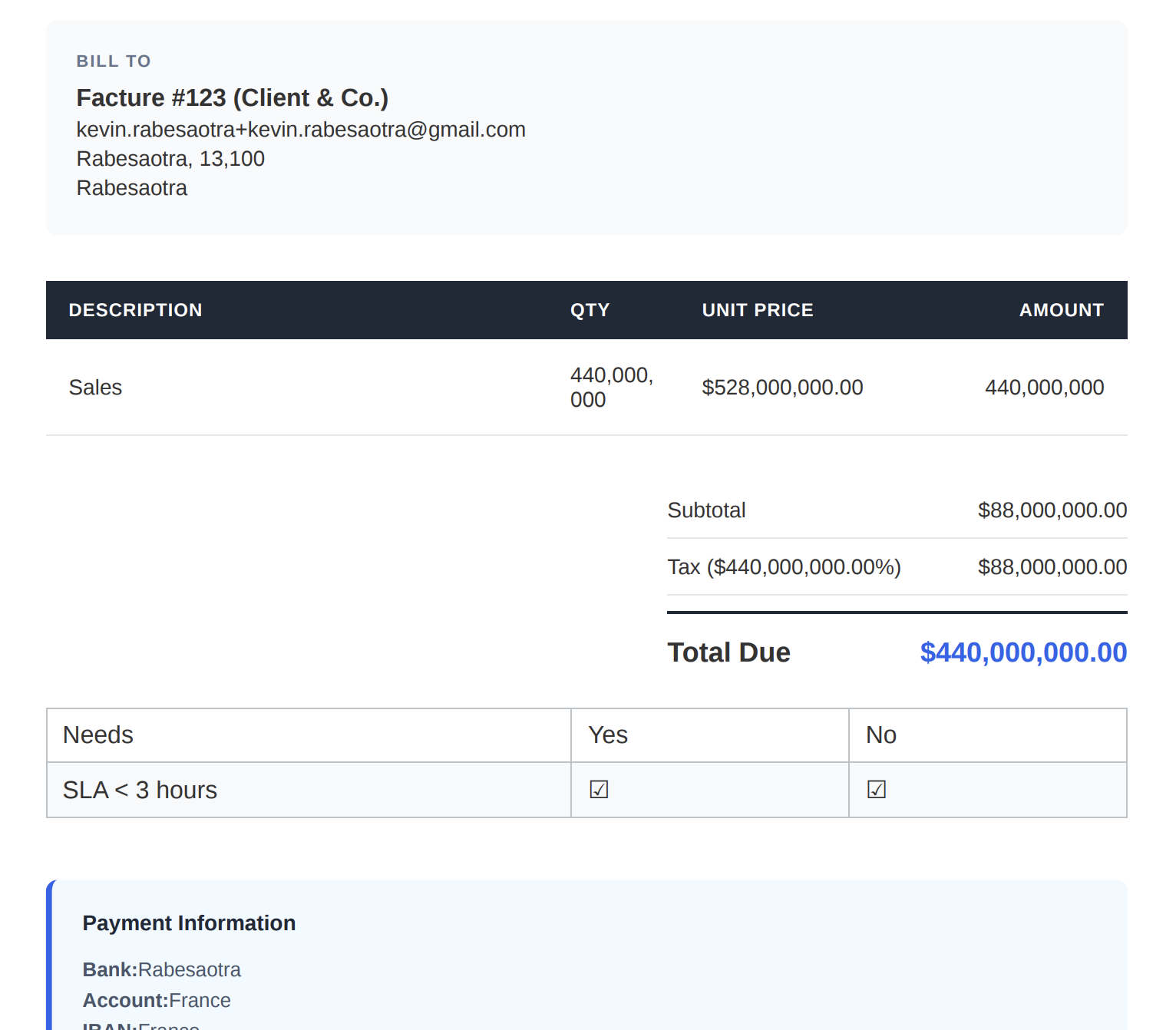
Output (when field = ["Consulting", "Maintenance"]):
Services Requested:

☑ Consulting
☐ Installation
☑ Maintenance
☐ Training
Combined with Text Display
You can show both the checkbox selection AND the text value:
Template:
Selected payment: {{payment_method}}

Options:
{{checkbox:payment_method|Cash}} Cash
{{checkbox:payment_method|Credit Card}} Credit Card
Mapping:
| Variable | Airtable Field |
|---|---|
{{checkbox:payment_method}} | "Payment Method" |
{{payment_method}} | "Payment Method" (same field) |
Output:
Selected payment: Credit Card

Options:
☐ Cash
☑ Credit Card
Tips & Best Practices
Use descriptive field names
| Good | Avoid |
|---|---|
{{checkbox:payment_method|Credit Card}} | {{checkbox:x|Yes}} |
{{checkbox:delivery_status|Delivered}} | {{checkbox:field1|Value}} |
Match values exactly
The expected value must match your Airtable options (but it's case-insensitive):
| Airtable option | Works | Doesn't work |
|---|---|---|
| "Credit Card" | {{checkbox:payment|Credit Card}} | {{checkbox:payment|CreditCard}} |
| "Credit Card" | {{checkbox:payment|credit card}} | {{checkbox:payment|CC}} |
| "Credit Card" | {{checkbox:payment|CREDIT CARD}} |
Use in tables for clean layouts
Checkbox variables work great in tables:
| Item                  | Yes                      | No                      |
|-----------------------|--------------------------|-------------------------|
| Space adequate        | {{checkbox:space|Yes}}   | {{checkbox:space|No}}   |
| Access clear          | {{checkbox:access|Yes}}  | {{checkbox:access|No}}  |
FAQ
Can I use checkbox variables in tables?
Yes! Checkbox variables work perfectly in tables. This is ideal for verification checklists with Yes/No columns.
Can I use checkbox variables inside loops?
Checkbox variables (both conditional and boolean) are not fully supported inside {{loop_0}} or {{table_loop_0}} contexts. Boolean fields may display as true/false text instead of ☑/☐ symbols.
What happens if the field is empty?
All checkboxes will show as unchecked (☐).
Is the comparison case-sensitive?
No. "Yes", "YES", and "yes" are all treated the same. The comparison is case-insensitive.
Does it work with HTML templates?
Yes! The same syntax works for both Google Docs and HTML templates.
Can I use special characters in the expected value?
Yes, special characters work: {{checkbox:discount|50% off}} or {{checkbox:type|Type A (Standard)}}
Troubleshooting
Checkboxes not appearing
Problem: The checkbox variables show as raw text in the generated document.
Solutions:
- Make sure you mapped the base variable (e.g.,
{{checkbox:status}}) in the Mapping tab - Check that the variable name is spelled correctly
- Refresh the Flow Builder to re-extract variables
Wrong checkbox is checked
Problem: The checkbox doesn't match the expected value.
Solutions:
- Check that the expected value matches your Airtable option exactly
- Look for extra spaces in your Airtable options
- Verify the correct field is mapped
All checkboxes are unchecked
Problem: None of the checkboxes are checked.
Solutions:
- Check that the Airtable field has a value (not empty)
- Verify the expected values match the Airtable options
- Make sure you're mapping to a Single Select or Multiple Select field
Related Articles
- Variables & Field Mapping - How to use variables to map fields
- Single Select Fields - Working with Single Select fields
- Conditional Sections - Show/hide sections based on field values
Need More Help?
- Email: support@typeflow.us
- Chat: Click the chat icon in the app