Updated February 21, 2026 · By TypeFlow
Softr: Filter & Sort Linked Records
Control which linked records appear in your documents and in what order. Unlike Airtable views, Softr stores these settings directly on the field.
Overview
When generating documents with line items from Softr, you may want to:
- Filter: Only include certain records (e.g., only "Signed" documents)
- Sort: Order records in a specific way (e.g., by date descending)
TypeFlow automatically reads these settings from your Softr field configuration and applies them during PDF generation.
Airtable vs Softr
| Feature | Airtable | Softr |
|---|---|---|
| Filter/Sort location | Views (table-level) | Field options (field-level) |
| TypeFlow configuration | Select view in dropdown | Automatic from field settings |
| Multiple configurations | Multiple views per table | One config per field |
Airtable users: See Sorting & Grouping for how to use Airtable views.
Step-by-Step Guide
Step 1: Open Your Table in Softr
- Go to Softr Studio
- Navigate to Databases
- Open the table containing your Related Record field
Step 2: Access Field Settings
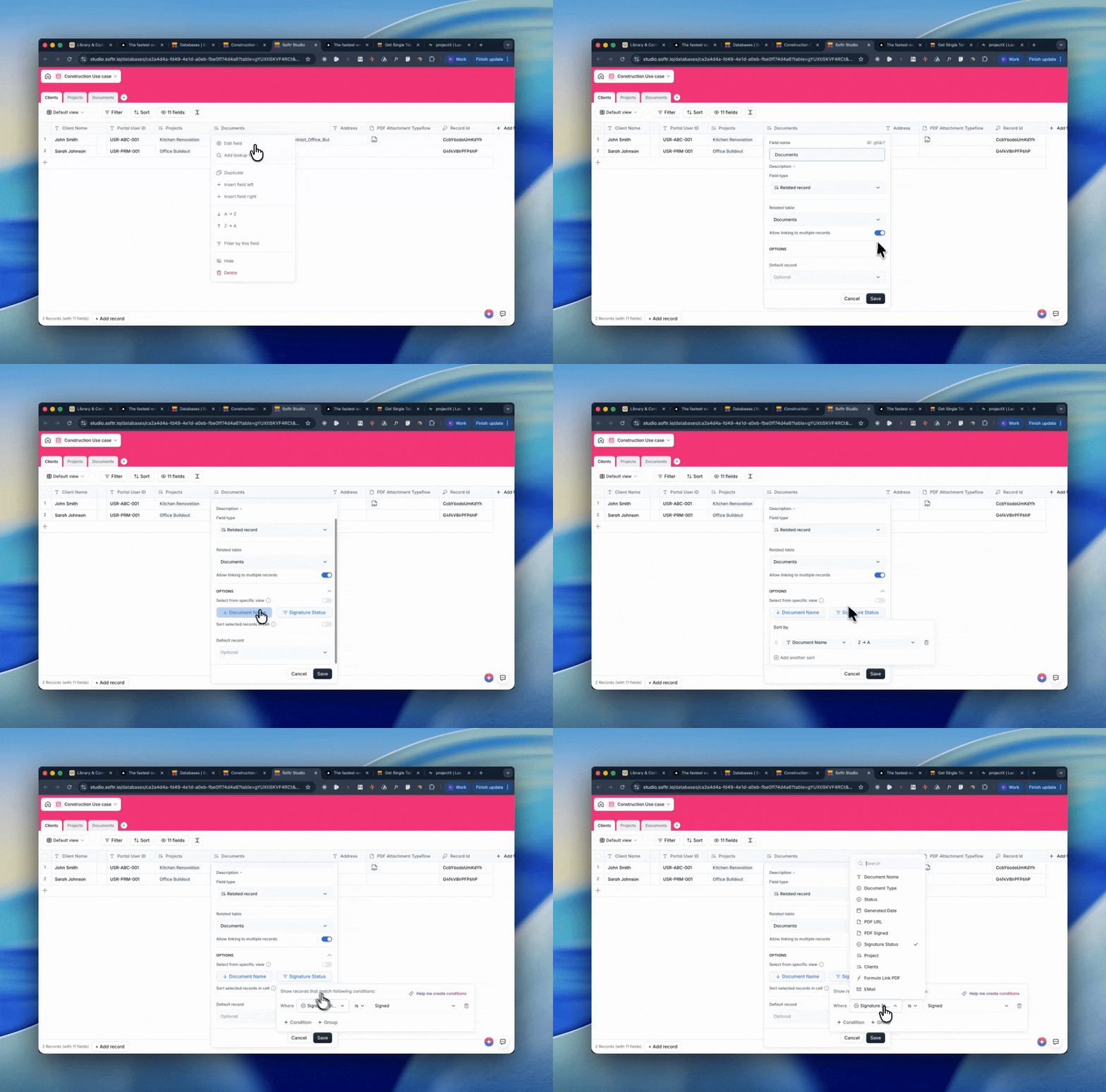
Click on the Related Record field header (column name), then select "Edit field".
Step 3: Configure Filter (Optional)
- Click the "Filter" button in the field settings
- Add your filter conditions:
- Select the field to filter by
- Choose the operator (IS, IS NOT, CONTAINS, etc.)
- Enter the value to match
- Click Save
Example filters:
- Status IS "Signed"
- Amount GREATER THAN 100
- Date IS NOT EMPTY
Step 4: Configure Sort (Optional)
- Click the "Sort" button in the field settings
- Configure the sorting:
- Select the field to sort by
- Choose Ascending (A→Z) or Descending (Z→A)
- Click Save
Step 5: Update TypeFlow Mapping
Important: After changing filter/sort settings in Softr, you must re-select the Related Record field in TypeFlow to pick up the new settings.
- Open your flow in TypeFlow
- Go to the Line Items mapping section
- Click the Related Record dropdown and re-select the field
- This refreshes the field options including filter/sort settings
Supported Operators
Filter Operators
| Operator | Description | Example |
|---|---|---|
| IS | Exact match | Status IS "Signed" |
| IS NOT | Not equal | Status IS NOT "Pending" |
| CONTAINS | Partial match | Name CONTAINS "Contract" |
| DOES NOT CONTAIN | Excludes text | Name DOES NOT CONTAIN "Draft" |
| IS EMPTY | Field has no value | Notes IS EMPTY |
| IS NOT EMPTY | Field has a value | Email IS NOT EMPTY |
| GREATER THAN | Numeric comparison | Amount > 1000 |
| LESS THAN | Numeric comparison | Quantity < 10 |
| IS ANY OF | Multiple values (OR) | Status IS ANY OF ["Signed", "Approved"] |
| IS NONE OF | Exclude multiple | Type IS NONE OF ["Draft", "Cancelled"] |
Sort Options
| Sort Type | Description |
|---|---|
| Ascending (A→Z) | Alphabetical, oldest first, smallest first |
| Descending (Z→A) | Reverse alphabetical, newest first, largest first |
Multi-field sorting: Add multiple sort rules. The first rule takes priority.
Example Use Case
Scenario: Generate a client report showing only signed documents, sorted by name.
Softr Setup
- Open the "Clients" table
- Click the "Documents" Related Record field → Edit field
- Add filter: "Signature Status" IS "Signed"
- Add sort: "Document Name" Descending
- Save
TypeFlow Setup
- Open your flow
- In Line Items, re-select the "Documents" field
- Generate a test document
Result
Your PDF shows only signed documents, sorted Z→A by name.
Troubleshooting
| Issue | Solution |
|---|---|
| Filter/sort not applied | Re-select the field in TypeFlow after changing Softr settings |
| No records appear | Filter may be too restrictive - check conditions match actual data |
| Wrong order | Verify sort field and direction in Softr, check for null values |
FAQ
Do I need to reconfigure TypeFlow after changing filter/sort in Softr?
Yes. After changing filter or sort settings in Softr, you must re-select the Related Record field in TypeFlow to pick up the new settings.
Why is there no "Filter by view" dropdown for Softr?
Softr doesn't use views like Airtable. Instead, filter and sort settings are stored directly on the Related Record field itself in Softr Tables.
Can I have different filter/sort for different documents?
Not directly. Softr stores one filter/sort config per Related Record field. For different configurations, you would need separate Related Record fields.
What if I don't configure any filter or sort?
TypeFlow will return all linked records in their default order (typically the order they were linked).
Related Articles
- Softr Integration - Setup methods for Softr
- Sorting & Grouping (Airtable) - Using Airtable views
- Line Items - Basic line items setup
Need More Help?
- Email: support@typeflow.us
- Chat: Click the chat icon in the app