Updated August 30, 2026 · By TypeFlow
Document Selector: One Button for Multiple Documents
Use a single Airtable formula field to generate any document from a table with multiple flows. No more cluttered buttons - one URL handles everything.
Overview
When you have multiple document types on the same Airtable table (for example, a Standard Rental Agreement, a Pet Rental Agreement, and an Invoice), you normally need a separate button for each one.
The Document Selector replaces all those buttons with a single URL. When clicked:
- One flow on the table - the document generates immediately, zero extra clicks
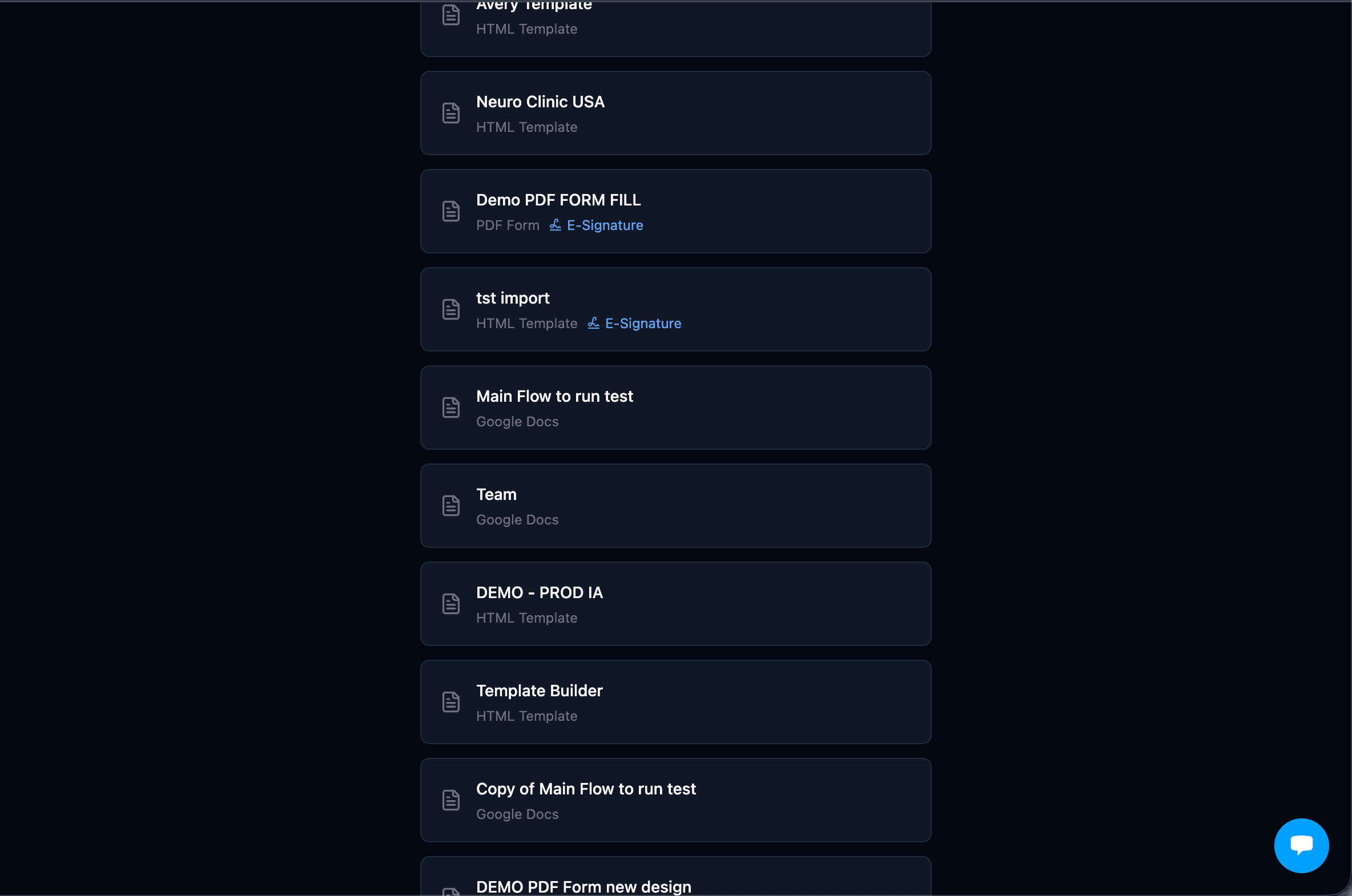
- Multiple flows - a clean picker appears where the user selects which document to generate
How to Set Up
- Open your flow in TypeFlow and go to the Implement tab
- Select Document Selector from the method options
- Copy the formula provided
- In Airtable, create a Formula field and paste the formula
- Set the output type to URL
- Click the URL on any record to generate
The formula looks like this:
"https://app.typeflow.us/select?record_id="&RECORD_ID()&"&table_id=tblXXXXXXXX"
Replace tblXXXXXXXX with your actual table ID (TypeFlow fills this in automatically when you copy the formula from the Implement tab).
How It Works
The Document Selector automatically detects all flows configured for the table in the URL. It handles routing to the correct generation endpoint:
| Template type | Route |
|---|---|
| Google Docs | app.typeflow.us/api/generate-doc |
| HTML Template or PDF Form | premium.typeflow.us/api/generate-doc-builder |
Each flow card in the picker shows:
- Flow name - the name you gave your flow in TypeFlow
- Document type - Google Docs, HTML Template, or PDF Form
- E-Signature badge - if the flow has e-signature enabled
After you click a flow, the document generates and you are redirected to the PDF - the same behavior as clicking a regular Airtable button.