Updated August 26, 2026 · By TypeFlow
How to Connect Fibery to TypeFlow
Connect your Fibery workspace to TypeFlow to generate PDFs, invoices, contracts, and labels from your Fibery data. The setup takes about 5 minutes.
Prerequisites
- A Fibery workspace with at least one database
- A TypeFlow account
- Access to Fibery integration is currently gated - contact us at k@typeflow.us to get access
Step 1: Create a Fibery API Token
- Open your Fibery workspace
- Go to Settings (gear icon in the bottom left)
- Navigate to Integrations then API tokens
- Click Create token
- Give it a name (e.g. "TypeFlow") and copy the token
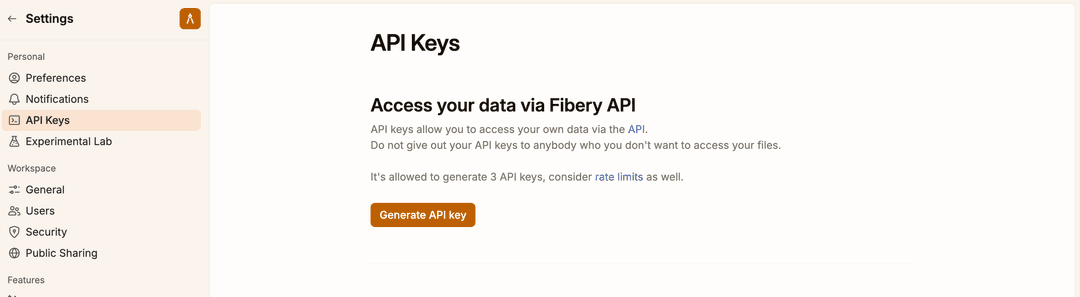
Keep this token safe - you will need it in the next step.
Step 2: Connect Fibery in TypeFlow
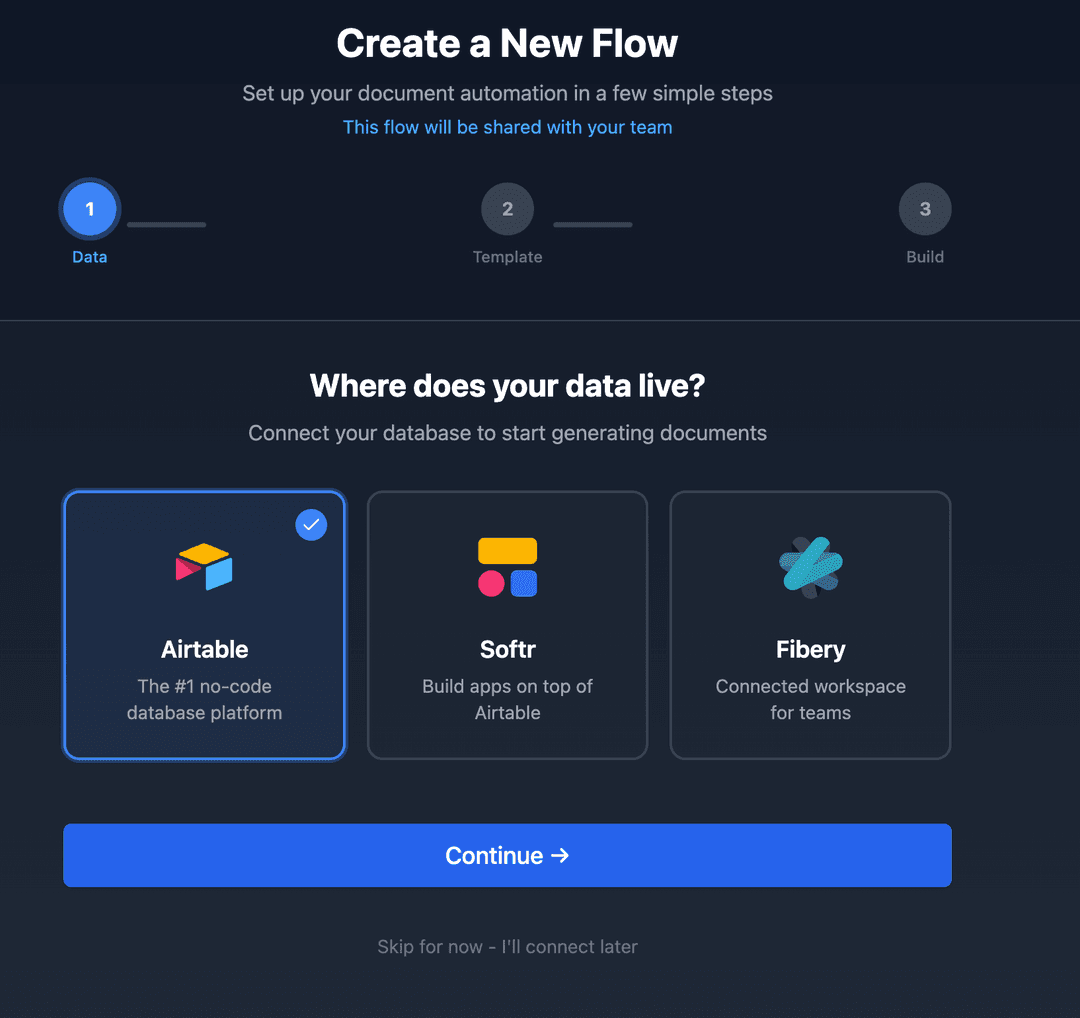
- In TypeFlow, create a new flow or open an existing one
- In the data source step, select Fibery
- Paste your API token and your workspace URL (e.g.
https://yourcompany.fibery.io) - Click Connect
Step 3: Select a Database
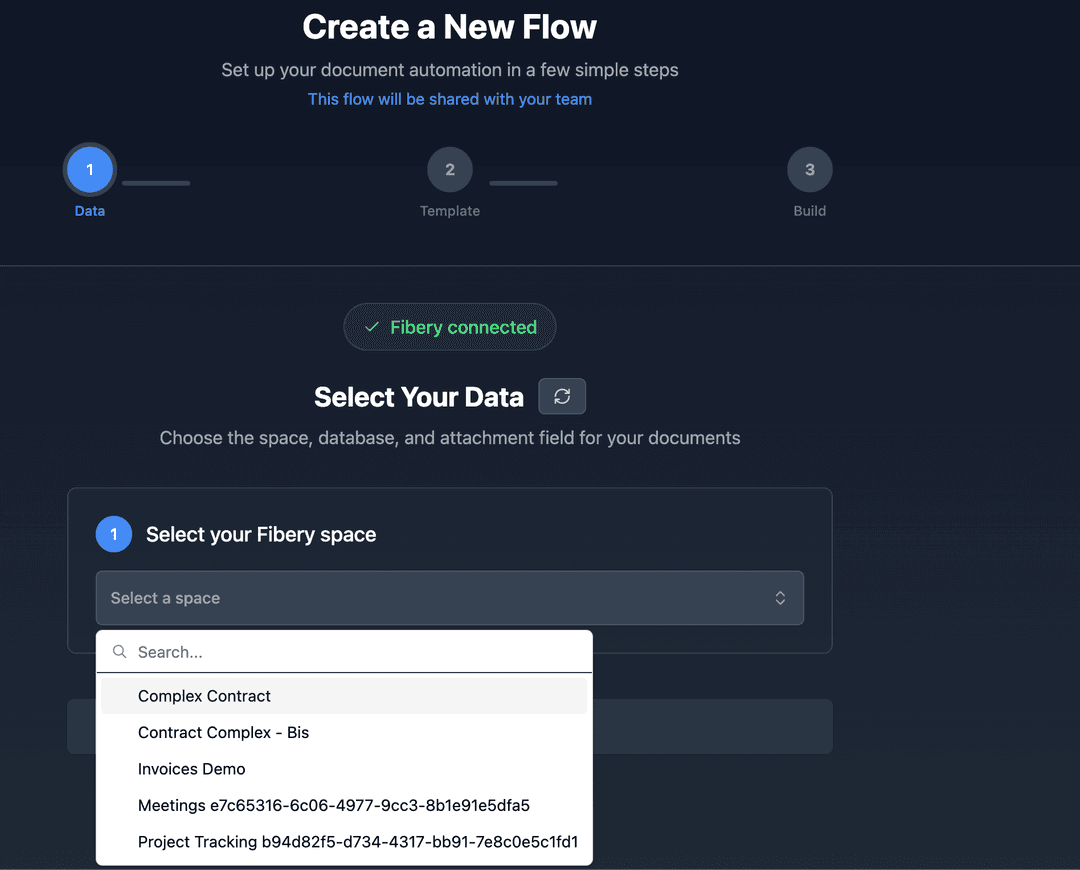
After connecting, TypeFlow fetches all databases from your Fibery workspace.
- Select the database you want to generate documents from (e.g. "Invoices", "Contracts", "Products")
- TypeFlow loads the database schema including all fields and relations
Step 4: Map Fields to Template Variables
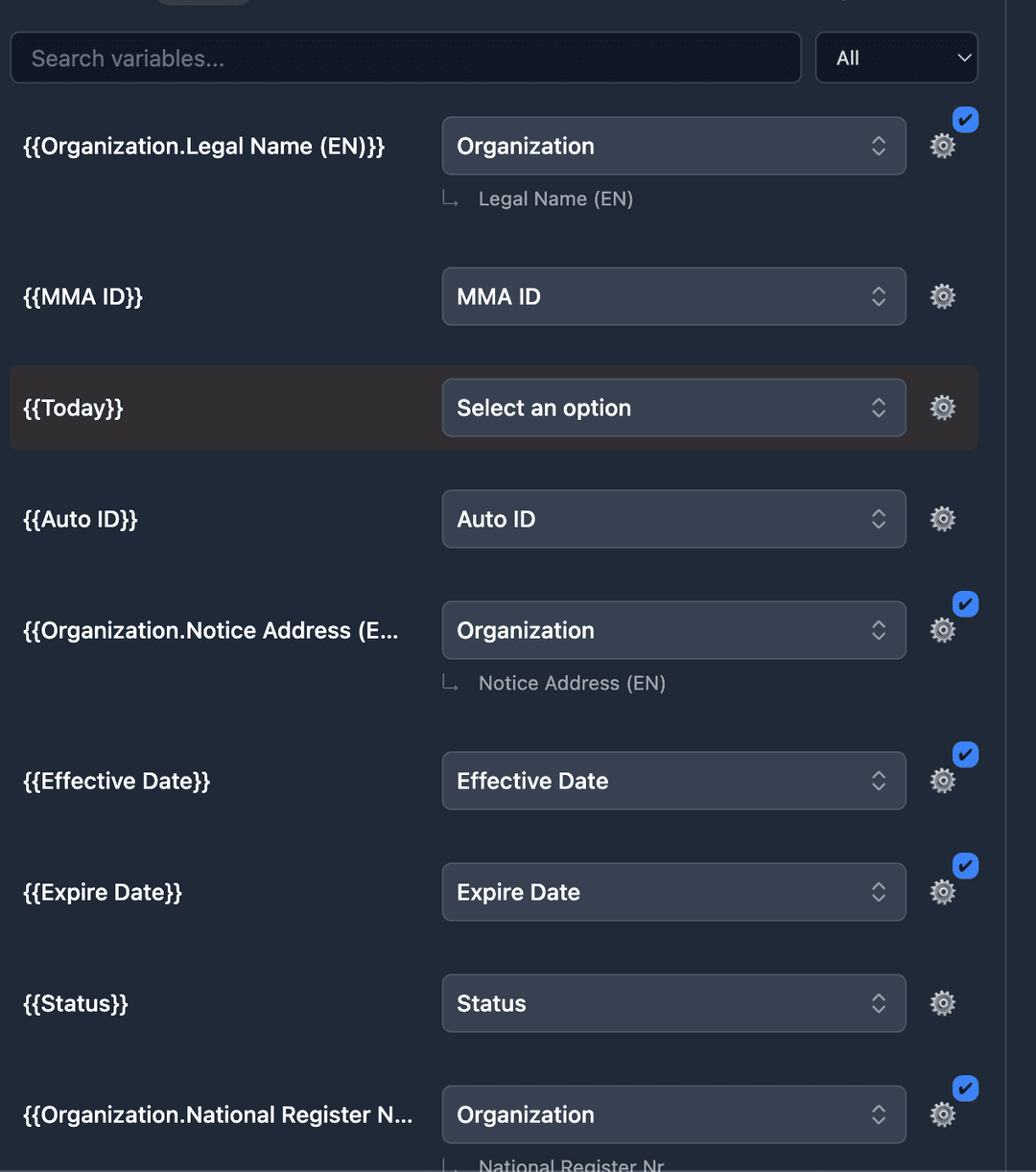
Map your Fibery fields to the variables in your template. This works the same as Airtable mapping.
- Simple variables: Map a template variable like
{{company_name}}to a Fibery field - Linked records: Map through relations to pull data from linked databases
- Line items / Table items: Map a linked record field as the source, then map child fields to loop variables
- Nested items: Two-level loops (parent + child records)
- Views: Select a Fibery View to apply filters and sort order to your loop data
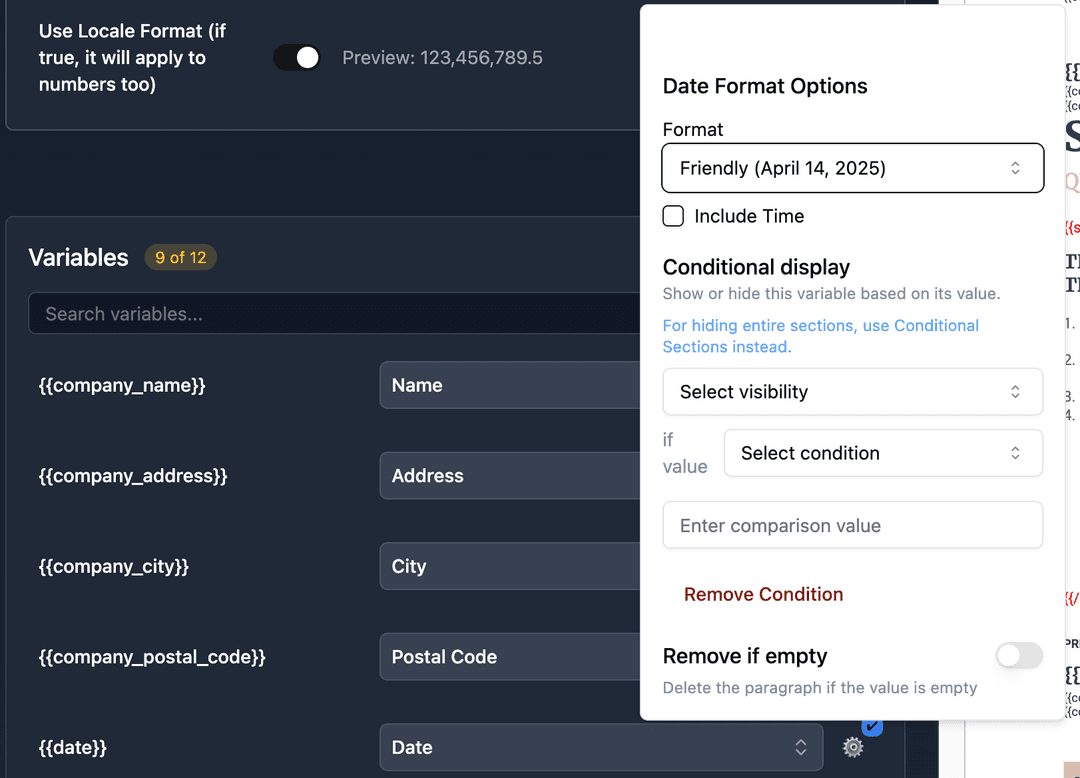
Date Format Options
For date fields, click the gear icon to choose a display format:
- Default (locale-based)
- US (MM/DD/YYYY)
- European (DD/MM/YYYY)
- ISO (YYYY-MM-DD)
- Friendly (April 14, 2025)
- Include time (12-hour or 24-hour)
Step 5: Configure Write-Back
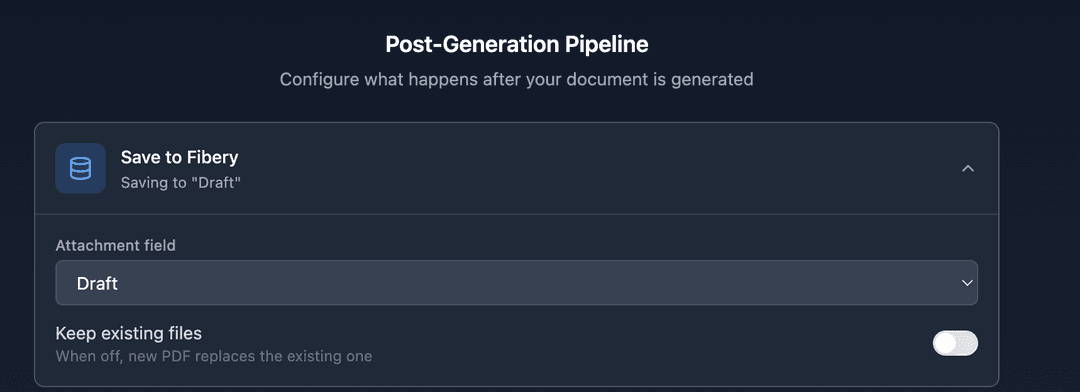
TypeFlow can save the generated PDF back to your Fibery record.
- Select a file field in your database as the attachment destination
- Enable Overwrite if you want each new generation to replace the previous PDF
Supported Field Types
| Fibery Field Type | TypeFlow Type | Notes |
|---|---|---|
| Text (single line) | Text | Direct mapping |
| Number | Number | Formatted with locale settings |
| Currency | Currency | Symbol + precision from Fibery schema |
| Percent | Percent | Formatted with locale settings |
| Date | Date | Configurable format via UI dropdown |
| Date-time | DateTime | Configurable format + time |
| Single Select | Select | Renders the option name |
| Checkbox | Checkbox | Renders as true/false |
| Rich Text | Rich Text | HTML converted to formatted text (bold, lists, links) |
| Files | File/Image | Downloadable URLs, rendered as images in templates |
| Relations | Linked Records | Traverse to pull fields from linked databases |
| Formula | Varies | Returns computed value (text, number, etc.) |
| Created / Modified | Date | System fields, formatted like regular dates |