How to Fill PDF Forms From Airtable (Step-by-Step Guide)
If your client data lives in Airtable but you still retype it into PDF forms by hand, this guide is for you. Airtable PDF form filling means your records fill the form for you, with no code and no copy-paste.
Below is what it is, why it is worth automating, and how to set it up end to end - including the parts that trip up real forms, like checkbox groups and values split across several boxes.
What Is Airtable PDF Form Filling?
Airtable PDF form filling means auto-populating the fields of an existing PDF form with your Airtable data, instead of typing them in by hand. You keep the exact form you were given, and your data flows into it.
This is different from building a new document from a template. Template generation creates a fresh file from your own design, which is what happens when you export Airtable data to PDF for an invoice or a report. Form filling keeps a fixed, third-party PDF and drops your values into its existing fields.
It applies to forms you cannot change: tax forms like the W-9, lease agreements, credit applications, compliance and ISO forms, insurance claims. The layout stays exactly as the issuer designed it. Only the answers come from Airtable.
Why Automate It
Automating removes slow, error-prone re-keying. A single form can carry 20 to 50 fields, and the same values get typed again for every new record. Multiply that by a week of paperwork and the cost is real.
Accuracy is the part that hurts later. A mistyped tax ID or an address off by a digit is not caught until someone downstream rejects the form. IBM research on the cost of poor data quality reports that 43% of chief operations officers name data quality as their most significant data priority. A form built directly from your source record cannot drift from it.
The Airtable Community forum has years of threads on exactly this, where people describe entering data into an existing PDF as time consuming and mistake prone. It is the most cited discussion on the topic.
What Teams Actually Fill
The pattern is always the same: a form designed by someone else, submitted repeatedly, with data that already exists in a base.
- Finance and accounting. W-9s for every new vendor, 1099s at year end, credit applications per customer.
- Property management. Lease agreements and renewals, each one identical except for tenant, unit, and dates.
- HR and onboarding. Offer paperwork, policy acknowledgements, benefit enrolment forms for each new hire.
- Compliance and quality. ISO forms, certificates of conformity, audit checklists that repeat per batch or per supplier.
- Insurance and claims. Carrier claim forms where the layout is fixed and only the incident details change.
Why Airtable Cannot Do This on Its Own
Airtable has no native way to populate an existing external PDF. Its two closest features solve different problems:
- Airtable forms collect input from people. They do not push existing records into a PDF you already have.
- Page Designer builds a layout inside Airtable and exports it. It cannot open a W-9 and fill its fields.
So the gap needs a third-party tool that reads your base, understands the form's fields, and writes your values into the right places.
What You Need
An Airtable account, the PDF form you have to complete, and a TypeFlow account. No design tool and no automation platform are required.
| Tool | Purpose | Notes |
|---|---|---|
| Airtable account | Holds the data that fills the form | Free plan works |
| Your PDF form | The file you must submit | Up to 20 MB, fillable or flat |
| TypeFlow account | Maps fields and generates the filled PDF | 20 documents free, no card |
How to Fill a PDF Form With Airtable Data
Connect Airtable, upload your PDF, map the fields, test, then trigger generation. That is the whole path from record to finished document. Each step below uses TypeFlow, and the fill a PDF form guide has the screen-by-screen detail.
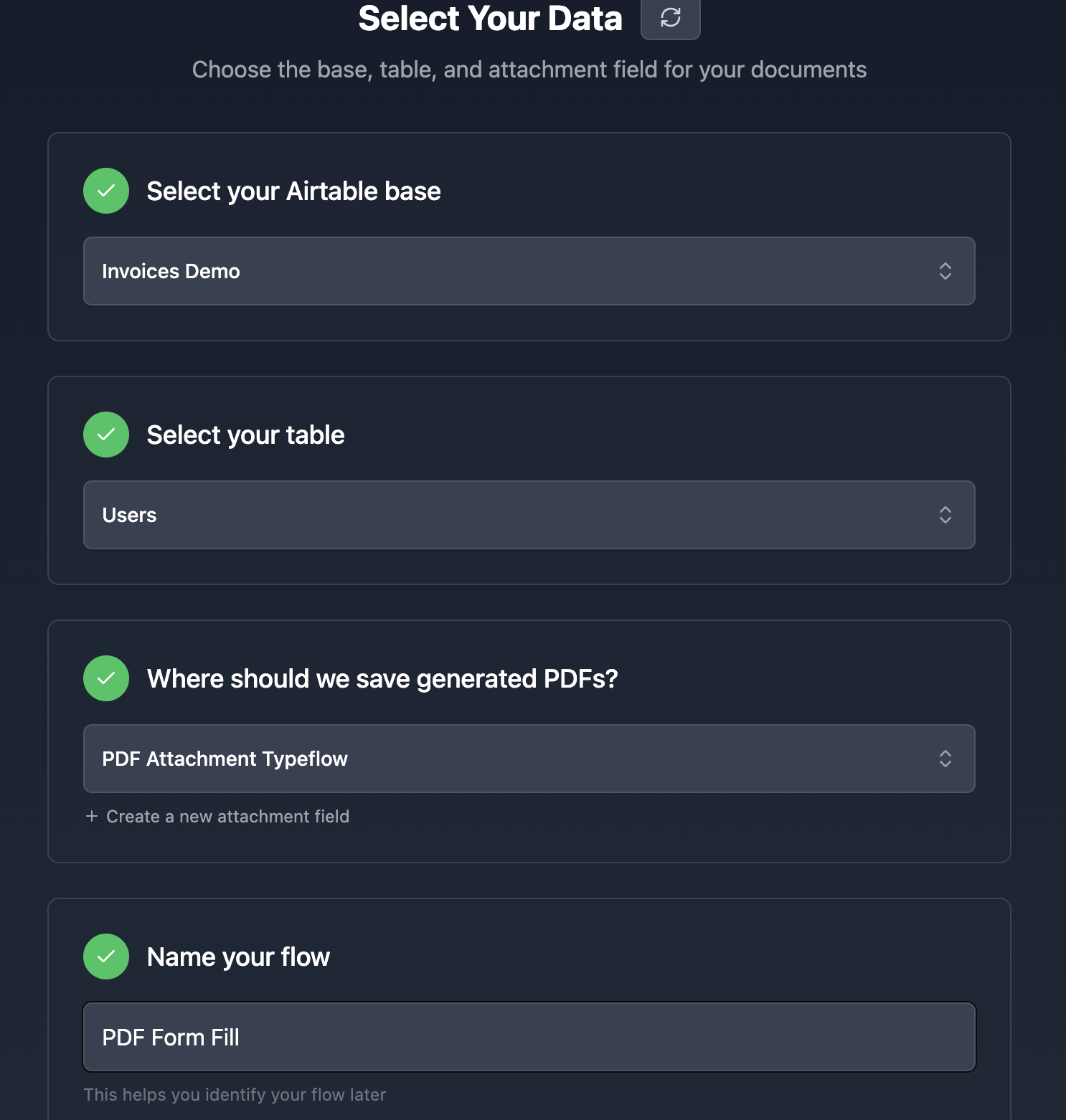
Step 1: Connect Your Base and Choose an Attachment Field
Connect the base and table holding your data, then pick the attachment field where the filled PDF will be saved.
That last part closes the loop. The finished file lands on the same record it came from, so there is no folder to hunt through and no filename convention to maintain. TypeFlow connects through a native Airtable integration with OAuth, so you grant access once.
Step 2: Upload Your Existing PDF Form
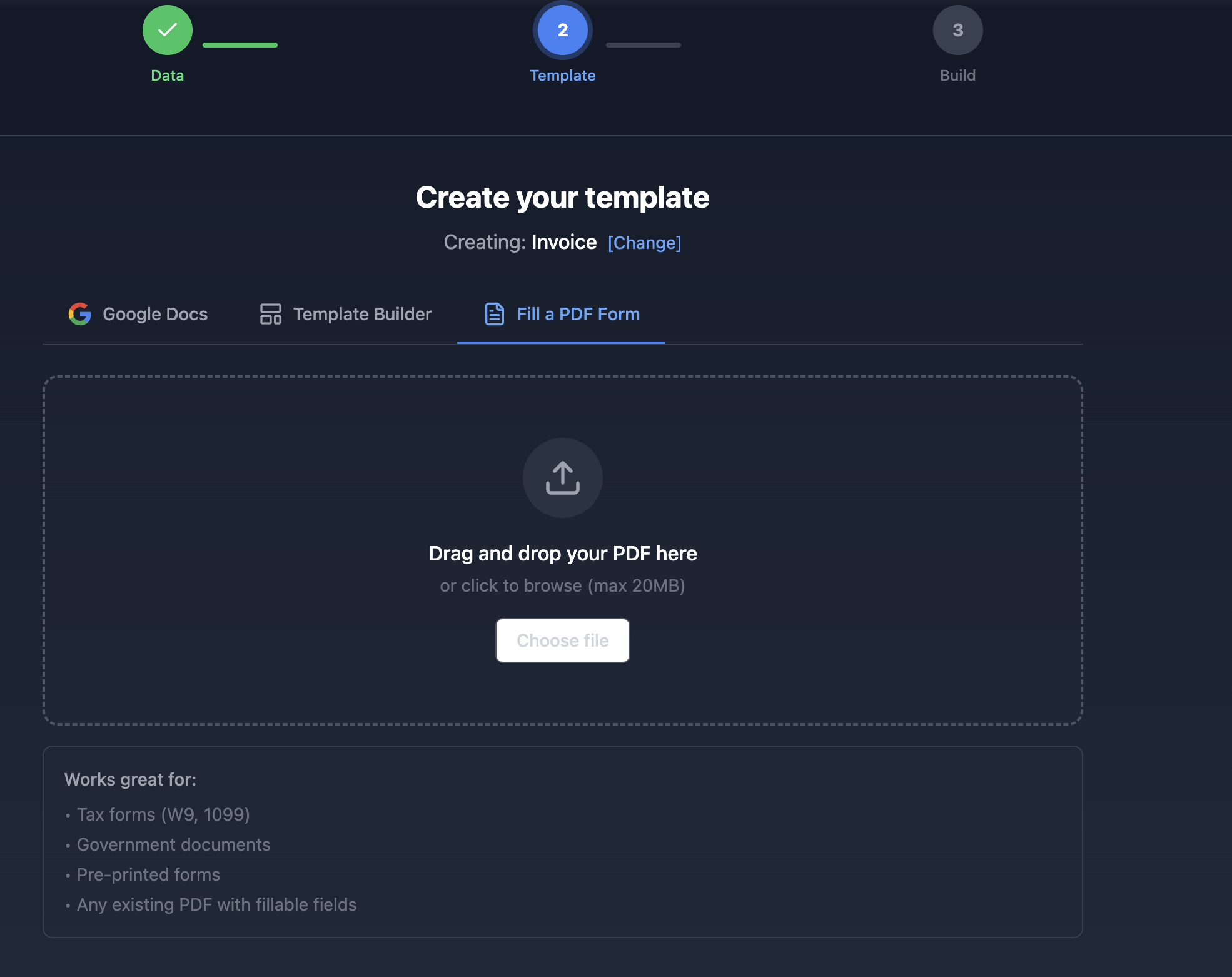
Upload the form you are required to use, up to 20 MB. Each page is converted to a preview, and any native form fields inside the file are detected automatically.
This works with any agency or third-party PDF. You keep their exact form, down to the layout and the wording. Nothing about the original file is modified.
Step 3: Map, Test, and Generate
Map your fields, run a test, then trigger generation for real. Mapping is where most of the setup time goes, so the next section covers it in detail.
Test runs are watermarked and do not count against your document limit, so you can check placement as many times as you need before spending anything. Once the mapping looks right, a document can be triggered by a button in Airtable, by TypeFlow Automation watching a field for a value change, or by Make or Zapier through a webhook. TypeFlow Automation needs no third-party automation platform.
How to Map Airtable Fields to a PDF Form
There are two ways to map, and which one you use depends on the PDF itself: auto-detected native fields, or manual placement. Most real workflows involve both, because inboxes contain both kinds of file.
Auto-Detected Fields (AcroForm)
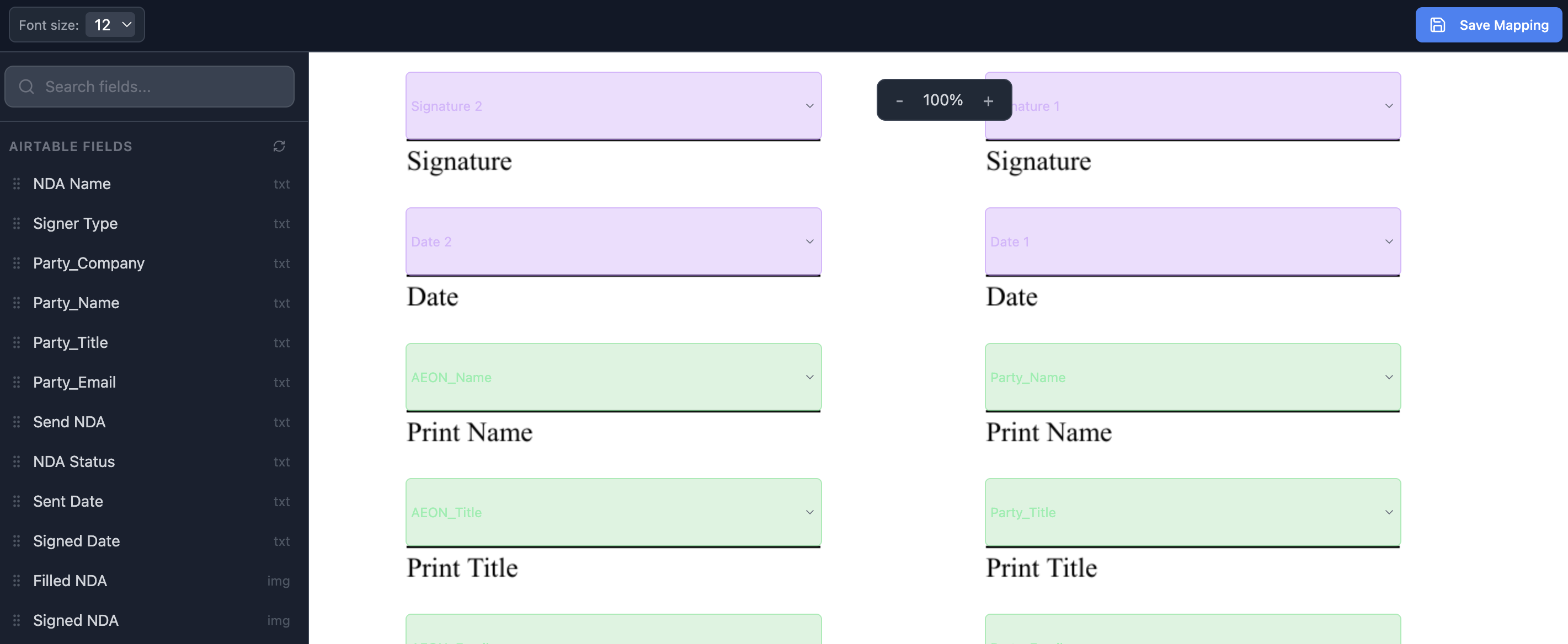
If the PDF already has native form fields - the ones Adobe calls AcroForm fields - TypeFlow detects them on upload. You never place anything by hand; you only choose which Airtable field fills each one.
The editor makes the state obvious. An unmapped field shows as an amber Map field placeholder. Once you connect it to an Airtable field, it turns green. Amber means unfinished, green means ready, so a glance at the page tells you what is left.
Manual Placement for Flat or Scanned PDFs
A flat PDF is a scan or a print-to-PDF with no real fields inside it - just pixels. For those, you drag an Airtable field onto the exact spot on the page and resize it.
You control how each value renders: font size from 6 to 72px, and alignment per field. This is what handles the messy real-world documents that forum threads complain about, where the only copy of a form is a scan someone emailed.
Checkbox Groups and Split Fields
Two things break generic tools on real paperwork, and both are worth setting up properly.
Checkbox groups. A form asks for one choice among several boxes - filing status, entity type, a yes/no pair. Group the boxes, point the group at a single-select or multi-select Airtable field, and the right box gets ticked. One column instead of one boolean per box.
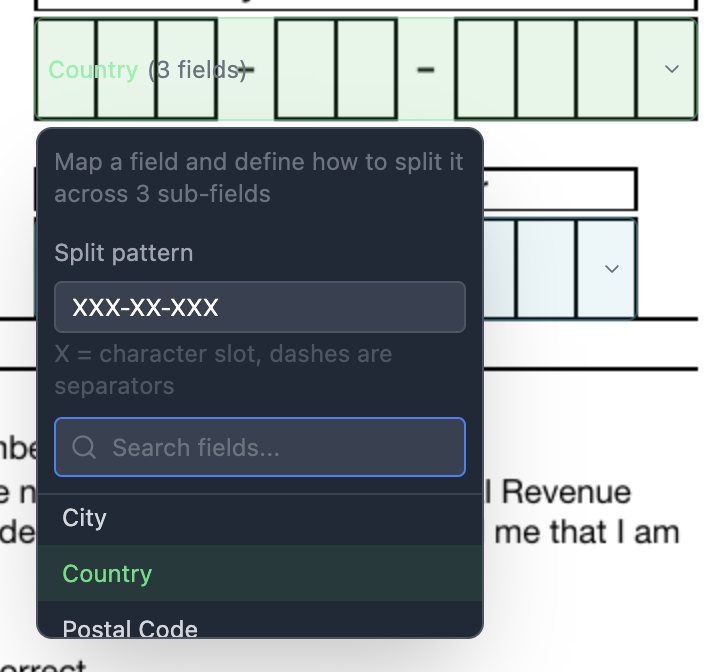
Split fields. A tax ID or reference number printed as separate boxes, one character each. Group them and give the group a split pattern such as XXX-XX-XXXX. An Airtable value of 132-24-3459 then fills as 132, 24 and 3459 across the boxes, in order.
Supported Field Types
Most Airtable data maps directly:
- Text, number, currency, and percent.
- Date.
- Checkbox.
- Single select and multi-select.
- Linked records.
- Lookups, rollups, and formulas.
- Image attachments.
Formatting follows your Airtable field settings. A currency field keeps its currency format and a date field keeps its date format, so you configure it once in the base rather than per form.
How to Add E-Signatures to a Filled Form
A filled form usually still needs a signature. You can place signature, text, date, and checkbox fields on the PDF, send it to one signer or several, and the signed file syncs back to the Airtable record.

Fields are grouped per signer, so a two-party form keeps each side's signature, date, and initials separate. Signers draw or type their name. Every signed document carries a Certificate of Completion and a full audit trail, and the signed PDF can update an Airtable field - setting Status to "Signed", for instance, which then drives the rest of your automation.
Every paid plan includes unlimited e-signatures, so there is no per-envelope fee on top. See the built-in e-signature doc for the full setup.
Signed documents are legally valid in the US: the ESIGN Act (Public Law 106-229, 2000) prohibits denying legal effect to a record or signature solely because it is electronic in interstate commerce. TypeFlow signatures meet both ESIGN and eIDAS standards.
Fill your PDF forms from Airtable
Upload a form, map your fields, and let every record produce a completed copy. E-signatures included on all paid plans.
Start free with 20 documents →Filling Many Forms at Once
Single records are the common case, but paperwork arrives in batches: onboarding a new cohort, annual tax forms, a compliance run across every supplier.
Bulk generation fills one form per record across a filtered Airtable view. Build the view, run the batch, and each record gets its own completed PDF on its own row. For a broader look at how this fits with template-based documents, see our guide to Airtable document generation.
Best Practices
A few habits keep a form-filling setup working once it is live.
Test on your messiest record, not your cleanest one. The long company name, the address with a second line, the client with no middle initial. Placement problems show up on edge cases, not on the record you built the mapping with.
Let Airtable own the formatting. Set currency, date, and number formats on the field rather than working around them per form. Every form you build afterwards inherits them.
Keep the source field single-purpose. If a value needs to appear differently on two forms, add a formula field rather than reformatting by hand each time.
Re-check placement after replacing a PDF. If the issuer sends an updated version of the form, the page may have reflowed. Run one test before the next batch goes out.
Save the output to the record, not a folder. An attachment field on the source row keeps the filled PDF, its data, and its status in one place, which is what makes the rest of the automation possible.
Troubleshooting Common Issues
Most problems come from mapping or from the PDF itself. This covers the ones that come up most.
| Issue | Solution |
|---|---|
| Fields stay amber and nothing fills | Those fields are not mapped yet. Amber means unmapped, green means ready - click each one and pick an Airtable field. |
| The PDF has no detected fields at all | It is a flat or scanned file with no AcroForm fields. Use manual placement and drag each field onto the page. |
| Text overflows or gets cut off | Reduce the font size for that field, or check the record with the longest value. The box does not grow with the text. |
| A checkbox never gets ticked | Confirm the group points at a single-select or multi-select field, and that the option name matches the Airtable value. |
| A split value lands in the wrong boxes | Check the split pattern. XXX-XX-XXXX must match how many characters belong in each box, and dashes act as separators. |
| Currency or dates look wrong | Formatting follows the Airtable field settings, so fix it on the field rather than in the form. |
| The filled PDF does not reach Airtable | Confirm the target field is an Attachment field and that it is selected as the destination. |
| Test runs look right but production fails | Test mode uses the record you selected. Run a second test on a different record before a bulk run. |
Choosing a Tool
Several tools can fill PDF forms from Airtable, and which one fits depends on whether you want the whole workflow inside Airtable or prefer to assemble it yourself from an automation platform and a separate PDF app.
We compare the realistic options - including how each one handles field detection, flat PDFs, and signatures - in Best Airtable PDF Form Filling Tools.
Start Filling PDF Forms From Airtable
The path is short: connect your base, upload the form, map the fields, test until the placement is right, then generate. From there the filled PDF lands on the record, the signature comes back to the same place, and the status updates on its own.
The free trial includes 20 documents and no credit card, which is enough to run a real form end to end.
Automate your document generation
Start with 20 free documents. Built for businesses using Airtable.
FAQs About Filling PDF Forms From Airtable
Find answers to the most common questions about this feature.
Popular Questions
All Questions
Need more help?
Our team is here to help you solve all your problems and answer your questions.
Contact Us
Kevin from TypeFlow
•AuthorKevin Rabesaotra is a growth engineer and automation specialist with 8+ years of experience building no-code solutions. As Founder & CEO of TypeFlow, he has helped hundreds of businesses automate document generation and streamline workflows with Airtable integrations. Previously, Kevin was a Product Lead specializing in growth engineering, running experiments to drive revenue, retention, and lead generation.
More articles
How to Print Labels from Airtable with Quantity Control (Step by Step)
Print multiple labels per Airtable record based on a quantity field. Step-by-step guide for linked records mode and quantity repeat mode with barcodes and Avery sheets.
Read articleHow to Print Avery Mailing Labels from Airtable
Print Avery mailing labels (5160, 5161, 5162) from Airtable without Word mail merge. Step-by-step guide with print label mode, automation, and bulk generation.
Read articleHow to Create Inventory Labels with Barcodes in Airtable
Create inventory labels with Code 128, EAN-13, or QR barcodes from Airtable. Step-by-step guide for warehouse, retail, and asset tracking with thermal and Avery printers.
Read article